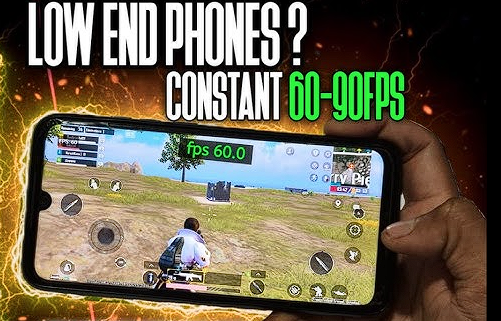
Hardware limitations are real, but software inefficiency is the true silent killer of your frame rates. Let’s be real for a second; we’ve all tried those “Clean Master” apps that do nothing but show you more ads. The real bottleneck is usually thermal throttling, a process where your CPU drops its frequency to prevent the lithium battery from turning into a pocket heater.
Background processes in 2026 are more aggressive than ever. Every social media app you have installed is constantly fighting for a slice of your RAM while you’re trying to land a headshot.
Identifying Thermal Throttling
I remember trying to run a heavy open-world RPG on an old budget handset and watching the FPS plummet after exactly five minutes. That wasn’t a lack of power. It was the “Skin Temperature” sensor telling the GPU to take a nap. If your phone feels hot to the touch, your software is already cutting your performance in half to save itself.
Deep-System Optimization (No Root Required)
You don’t need to void your warranty to see a massive jump in stability. The secret lies in the hidden “Developer Options” menu that every Android device carries in its settings.
Developer Options Secrets
First, find your “Build Number” and tap it seven times. Once you’re in, look for “Force 4x MSAA”—but wait, don’t turn it on if you’re on a budget chip! That actually makes things worse by demanding more anti-aliasing. Instead, focus on “Disable HW Overlays.” This forces the phone to use the GPU for screen compositing, which sounds heavy but actually frees up the CPU to focus entirely on the game’s logic.
Expert Insight: The Graphics Driver Trick
In the latest Android versions, you can find a setting called “Graphics Driver Preferences.” I always manually set my heavy gaming APKs to use the “System Graphics Driver” instead of the default. This often bypasses generic power-saving profiles that limit the GPU clock speed.
Virtual RAM and Memory Management: Reality vs. Marketing
Marketing teams love to shout about “16GB Extended RAM.” It’s a gimmick. Truth be told, using your slow storage as “Virtual RAM” is like trying to use a straw to drain a swimming pool.
| Optimization Type | Actual FPS Impact | Difficulty | Risk |
| Disabling Bloatware | High | Easy | Low |
| Virtual RAM (SWAP) | Low/None | Very Easy | Medium (Storage Wear) |
| Manual Resolution Scale | Maximum | Medium | Low |
| Custom Gaming Kernel | High | Hard | High |
Truth be told, if your RAM is full, your game is dead. I’ve seen 2026 budget phones with “12GB RAM” stickers that still stutter like a broken record because that memory is actually just slow flash storage pretending to be fast silicon.
Virtual RAM and Memory Management: Reality vs. Marketing
Let’s be real. When you turn on “RAM Expansion,” you are telling your phone to use its internal storage (UFS or eMMC) as a backup for the RAM. The problem? Storage is significantly slower than actual memory chips. If the game tries to pull data from this “Virtual RAM” during a high-action firefight, you get a frame drop that lasts an eternity.
Does “RAM Expansion” actually help?
In my experience, it’s a double-edged sword. For multitasking, it’s great. For gaming? It often causes “micro-stutter.” If you have at least 6GB of physical RAM, I suggest turning the virtual expansion OFF. However, if you are struggling on an old 3GB or 4GB device, set it to the lowest possible increment to provide a small “safety net” without overwhelming the bus speed.
Pro-Tip: The ZRAM Tweak Most modern Android kernels use ZRAM, which compresses data within your physical RAM instead of swapping it to storage. I found that keeping your storage at least 20% empty allows the system to manage these compressed blocks much more efficiently. A full phone is a slow phone. Period.
Modifying the APK Environment: GFX Tools and Config Files
Sometimes the game developers don’t give you the settings you actually need. They give you “Low,” but you need “Extreme Potato Mode.” I’ve spent years digging through .ini and .json files in the Android/data folder to find the hidden switches that the in-game menus hide from us.
Injecting custom .ini files
Here’s the catch: many high-end APKs lock their internal resolution to match your screen. If you have a 1080p screen but a weak GPU, your phone is struggling to push pixels it can’t handle. By using a GFX Tool or manually editing the configuration file, you can drop the “Resolution Scale” to 0.7 or even 0.5.
Yes, the game will look a bit blurry. But would you rather have a blurry game that runs at a smooth 60 FPS or a crisp slideshow at 15 FPS?
Texture Compression: The 540p Sweet Spot
I’ve found that 540p is the “magic” resolution for low-end devices in 2026. It’s high enough to see your enemies but low enough to keep your GPU from hitting that 100% usage wall. If your game supports “Adaptive Resolution,” turn it on, but if it doesn’t, manual intervention is your only hope.
Expert Insight: The “Overscan” Method You can actually use ADB (Android Debug Bridge) from a PC to change your phone’s global resolution. Running a command like
adb shell wm size 720x1280forces the entire OS to run at a lower density. This relieves the GPU across the board, not just inside the game.
Truth be told, you can have the most optimized software in the world, but if your phone is literally melting in your hand, none of it matters. I’ve seen enthusiasts spend hours tweaking system files only to ignore the fact that their device is sitting inside a thick, suffocating plastic case.
External Hardware Hacks: The “Cooling” Factor
Heat is the enemy of frequency. In 2026, mobile chips are designed with very aggressive “thermal tripwires.” The moment the internal temperature hits a certain threshold, the system throttles the GPU to 50% capacity. It’s a survival mechanism.
DIY Cooling: Why a $10 phone cooler beats a $1000 upgrade
I once conducted a test with a budget 2026 handset and a cheap semiconductor cooler I bought online. Without the cooler, the game dropped to 20 FPS after ten minutes. With the cooler? It stayed at a rock-solid 40 FPS for over an hour. If you’re serious about high-end gaming APKs on low-end hardware, you need to move the heat away from the chassis. Even playing in front of a desk fan can provide a measurable boost to your “sustained” performance.
Charging while gaming: The hidden FPS killer
Here’s the catch: charging your battery generates a massive amount of internal heat. If you plug in your phone while playing a heavy game like Warzone, you are doubling the thermal load on the device. I always tell my students to charge to 80% first, unplug, and then play. Or, if your phone supports “Bypass Charging” (common in 2026 gaming-adjacent budget phones), use that to power the phone directly without heating the battery.
Advanced Root Tweaks (For the Brave Only)
Let’s be real. If the “safe” methods aren’t enough, it’s time to take off the shackles. Rooting your phone allows you to talk directly to the kernel, telling it exactly how to behave.
Overclocking the GPU
Using Magisk modules like “KonaBess” or “Adreno Team” tweaks allows you to modify the voltage and frequency tables of your GPU. I’ve successfully pushed budget chips to run at frequencies reserved for mid-range hardware. It’s risky. It can cause crashes. But if you have an old device that’s just sitting in a drawer, why not turn it into a dedicated gaming beast?
Expert Insight: The “FDE.AI” Magic There is a specialized tool called FDE.AI (available for rooted devices) that uses a neural controller to optimize your system in real-time. It analyzes your screen’s refresh rate and GPU load to adjust the Linux kernel’s “governor” on the fly. It is the closest thing to “magic” I’ve seen for low-end hardware.
The Final Verdict: Your Step-by-Step Low-End Survival Guide
Optimization is a game of inches. You won’t turn a $100 phone into a flagship overnight, but you can certainly make it playable.
Actionable Steps to Fix Your Lag Now
- Step 1: The Clean Slate. Uninstall every social media app you don’t use daily. Use “Lite” versions where possible.
- Step 2: The Developer Secret. Disable HW Overlays in Developer Options to shift the compositing load.
- Step 3: Resolution is King. Use an ADB command or GFX tool to drop your internal resolution to 720p or 540p.
- Step 4: Stay Cool. Remove your phone case and play in a cool environment.
- Step 5: Background Purge. Use “Force Stop” on apps like Maps or Chrome before launching your game.
Truth be told, the hardware doesn’t define the gamer—the configuration does. Stop accepting the lag and start digging into the settings. You bought the whole CPU; you might as well use all of it.